WordPress Core Web Vitals: What Theme-Level Problems Are Killing Your Rankings

WordPress Core Web Vitals failures usually start in the theme layer. Render-blocking CSS, oversized JavaScript bundles, and layout shifts from font loading are theme-level problems that no caching plugin can restructure away.
Most guides tell you to install WP Rocket and call it done. That advice skips the root cause. Your theme loads before any plugin runs. If the theme ships 400KB of render-blocking JavaScript and a font stack that triggers layout shifts, you are optimizing around a structural problem instead of fixing it.
This article covers the three theme-level patterns that break Core Web Vitals on WordPress sites, why plugins work around them instead of solving them, and when it makes more sense to migrate than to patch.
Why your WordPress theme controls your Core Web Vitals
Your theme is the first code that executes on every page load. It determines the CSS loading order, the JavaScript execution priority, and how your largest above-the-fold image renders. That makes it the single biggest factor in your Core Web Vitals scores.
Core Web Vitals are three metrics Google uses as ranking signals:
- LCP (Largest Contentful Paint): How long it takes for the biggest visible element to render. Target: under 2.5 seconds.
- CLS (Cumulative Layout Shift): How much the page layout moves around as it loads. Target: under 0.1.
- INP (Interaction to Next Paint): How fast the page responds when someone clicks or taps. Target: under 200 milliseconds.
In our audits of WordPress sites, the theme is responsible for LCP and CLS failures in roughly 7 out of 10 cases. Not the content. Not the plugins. The theme.
Here is why. Page builders like Elementor, Divi, and WPBakery inject their own CSS and JavaScript frameworks on every page load. Elementor loads its frontend.min.js and element handler scripts. Divi loads its builder framework. These files are render-blocking by default, meaning the browser cannot paint your page until it has downloaded and parsed them.
The result: your hero image, your above-the-fold heading, and your first visible content all wait behind a queue of framework code the visitor never sees. That queue is your LCP problem.

The 3 theme-level problems that break Core Web Vitals
1. Render-blocking CSS and JavaScript from the theme framework
A clean WordPress installation loads roughly 30-50KB of front-end assets. A site running Elementor Pro typically loads 250-500KB of render-blocking JavaScript and 100-200KB of CSS before the first pixel paints.
What we see repeatedly is this: the theme enqueues its entire framework on every page, regardless of which elements that page actually uses. A simple blog post loads the same JavaScript bundle as a page with sliders, tabs, and animated counters. There is no tree-shaking. No conditional loading. Every page pays the full weight.
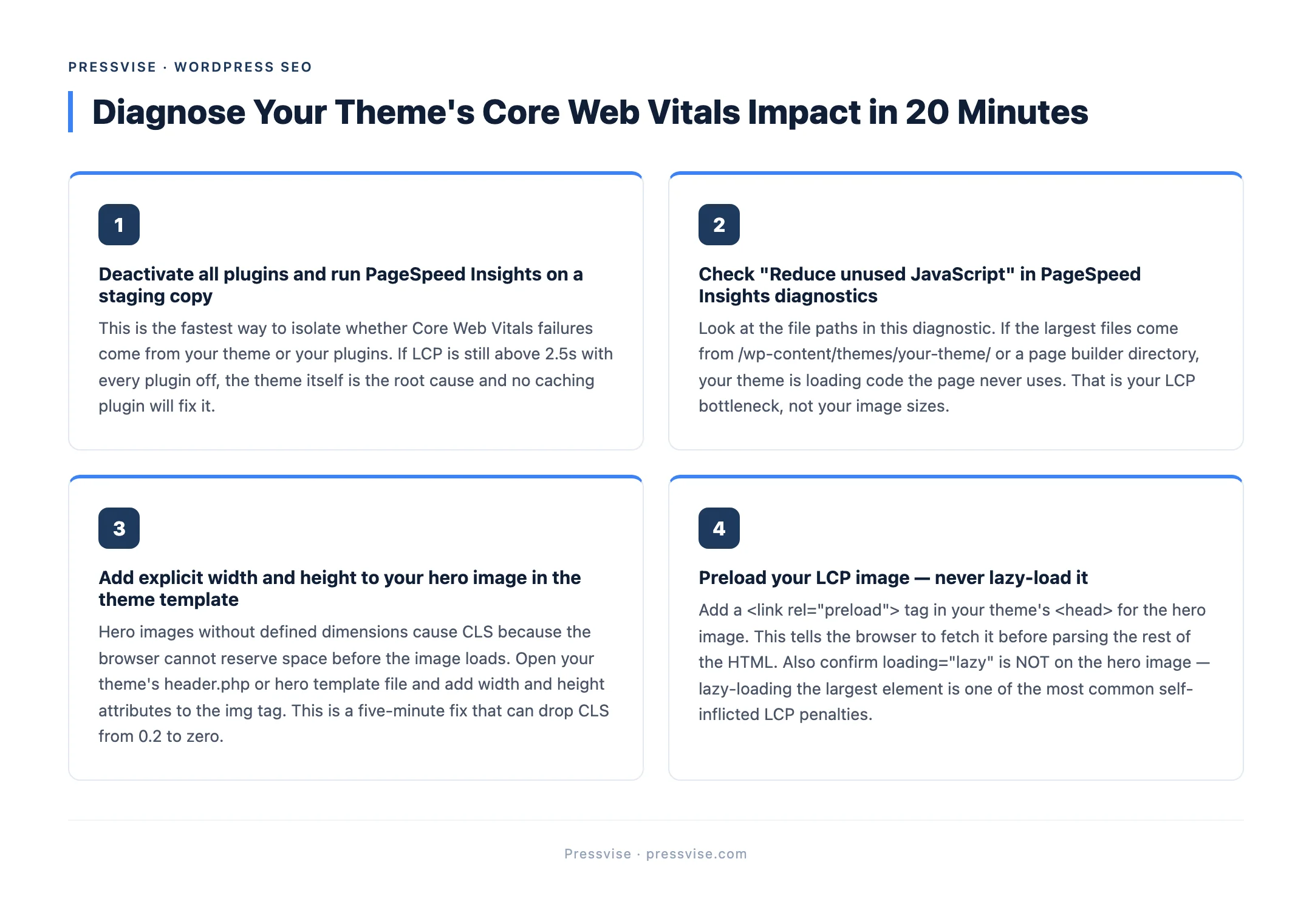
You can verify this yourself. Open Google PageSpeed Insights, run your homepage, and look at the “Reduce unused JavaScript” and “Eliminate render-blocking resources” diagnostics. If the largest files listed come from your theme or page builder directory, that is your LCP bottleneck.
2. Layout shift from dynamic font loading and hero image handling
CLS — Cumulative Layout Shift — measures how much the visible layout moves after the page starts rendering. On WordPress theme-powered sites, the two biggest CLS sources are web font loading and hero images without defined dimensions.
Most WordPress themes load Google Fonts or custom web fonts via CSS @import or JavaScript-based font loaders. When the browser first renders the page, it uses a fallback font. When the custom font finishes loading, the text reflows. Headings change height. Paragraphs shift. Buttons jump. That is a layout shift, and Google measures every one.
Hero images are the other common offender. Many themes render hero sections with dynamically sized containers that resize once the image loads. If the theme does not set explicit width and height attributes on the image element, the browser cannot reserve the correct space in advance. The result is a visible jump as the image loads — a CLS spike that directly hurts your score.
In our audits, we commonly see CLS scores of 0.15-0.35 on WordPress sites running themes like Avada or Divi, almost entirely caused by font swap and hero image reflow. The target is under 0.1.
3. Excessive DOM size from nested page builder containers
DOM size refers to the total number of HTML elements (nodes) on your page. Google flags pages with more than 1,500 DOM nodes as potentially problematic. According to HTTP Archive data, the median WordPress page has around 1,400 nodes. Pages built with visual page builders routinely exceed 2,000-3,000.
The cause is nesting. Page builders wrap every element in multiple <div> containers for styling and layout control. A single two-column section in Elementor generates 8-12 nested divs. A section with three feature cards might produce 40-50 nodes. Multiply that across a full landing page, and you are looking at a DOM tree that forces the browser to do significantly more layout calculation on every interaction.
This hits INP (Interaction to Next Paint) hardest. When a visitor clicks a button or opens a menu, the browser has to recalculate layout for thousands of unnecessary nodes. Response times slow. The page feels sluggish. Google records it.
Why plugins cannot fix theme-level problems
WP Rocket, NitroPack, Autoptimize, and similar performance plugins do three things well: they cache pages, minify files, and defer JavaScript execution. For a WordPress site with a lightweight theme, that can be enough.
But for theme-level structural problems, these plugins are working around the issue, not resolving it.
A caching plugin cannot remove the 300KB of unused JavaScript your page builder enqueues on every page. It can defer the execution, but the file still downloads. A minification plugin can shave 10-15% off file size, but it cannot restructure the CSS loading order your theme hardcodes. An image optimization plugin can compress your hero image, but it cannot add the width and height attributes your theme template omits.
What we see in practice: a WordPress site installs WP Rocket, LCP improves from 4.2 seconds to 3.1 seconds, and the site owner assumes the problem is solved. But 3.1 seconds is still above Google’s 2.5-second threshold. The plugin moved the needle. It did not fix the root cause.
The root cause is architectural. The theme loads too much code, loads it in the wrong order, and structures the HTML in a way that punishes rendering performance. Fixing that requires editing the theme layer directly — removing unused enqueues, restructuring CSS delivery, adding proper image attributes, and reducing DOM depth.
When to fix your theme vs. when to migrate
Not every theme-level Core Web Vitals problem requires a full migration. Here is a decision framework.
Run this test first. Deactivate every plugin on a staging copy of your site. Load a clean test page with only the theme active. Run it through PageSpeed Insights. If Core Web Vitals still fail with no plugins active, the theme is the confirmed root cause.
Fix the theme if:
- The theme is custom-built or a developer theme (GeneratePress, Kadence, Astra) with accessible template files. You can edit the enqueue order, remove unused scripts, and add image dimension attributes directly.
- The CWV failures are isolated — one or two specific issues (font loading, missing image dimensions) rather than systemic framework bloat.
- The site has significant content and SEO equity that makes a migration costly.
Migrate if:
- The theme is a page builder with structural limitations you cannot override. Elementor, Divi, and WPBakery bake their rendering approach into the framework. You cannot remove the nested DOM structure without removing the builder.
- Core Web Vitals fail across all page types, even with no plugins and minimal content.
- The theme’s JavaScript bundle exceeds 200KB of render-blocking code with no option to conditionally load.
Migration does not mean rebuilding your content. It means moving to a theme architecture (block-based, developer theme, or headless) that gives you control over what loads and when. The content stays. The wrapper changes.
If you are unsure whether your WordPress site’s Core Web Vitals problems are fixable at the theme layer, we work with WordPress SEO specialists who fix Core Web Vitals at the theme layer as part of every Month 1 audit. That audit tells you exactly where the problem lives and whether it requires a patch or a migration.
FAQ
Can a WordPress plugin fix Core Web Vitals?
Plugins like WP Rocket can improve scores by 15-30% but cannot fix structural theme problems. If Core Web Vitals fail with all plugins deactivated, the problem is in the theme layer. Render-blocking framework JavaScript, missing image dimensions, and excessive DOM nesting require theme-level fixes.
Which WordPress themes cause the worst Core Web Vitals scores?
Page builder themes consistently produce the worst scores. Elementor, Divi, and WPBakery load 200-500KB of render-blocking JavaScript and generate 2,000-3,000+ DOM nodes per page. Lightweight themes like GeneratePress and Kadence score significantly better.
Do Core Web Vitals actually affect rankings?
Yes — Google confirmed Core Web Vitals as a ranking signal in 2021 and expanded the metrics in 2024. The impact is strongest in competitive SERPs where content quality and backlinks are similar. For WordPress sites in low-competition niches, fixing CWV from failing to passing can move you from page 2 to page 1.
Further reading: If your Yoast plugin shows green lights but rankings have not moved, the problem likely goes deeper than on-page SEO. Read why green lights don’t mean rankings. For the full picture, see our full WordPress SEO guide.
For a deeper look at how platform-specific knowledge changes outcomes, see why platform expertise matters. Or explore our WordPress technical SEO service to see what a Month 1 audit covers.